Document Reader - PDF Editor
Simple Design Ltd.Productivity
4.76.33K Reviews
- Version
- 1.3.1
- Installs
- 50.00M
- Age Rating
- Everyone
Screenshots
Our Review of Document Reader - PDF Editor
 Analysis by Appyee
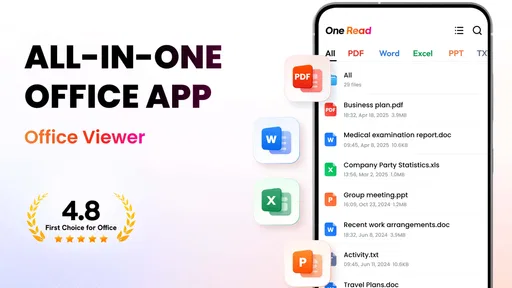
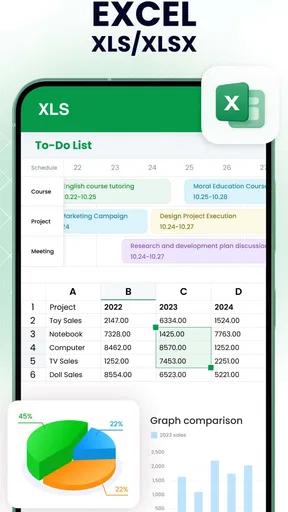
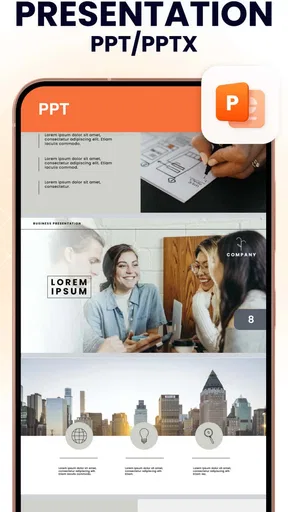
When I open a document on my phone, I usually want one thing: to read it without fighting the interface. Document Reader - PDF Editor is built for that everyday need. It is a free productivity app from Simple Design Ltd. that brings common office formats into one mobile viewer, including PDF, DOCX, XLSX, PPT, and TXT files. I found its appeal less in replacing a full desktop office suite and more in making an assortment of documents available from one familiar place.
That distinction matters for accessibility. A document viewer can be useful to someone who needs a quick, uncluttered way to inspect a file, but it can also become frustrating when controls are small, layouts shift, or a complex spreadsheet is squeezed onto a phone screen. My experience with this app is therefore positive but practical: it handles quick reading well, while demanding more patience for editing, dense layouts, and longer work sessions.
How the reading experience works in real situations
I focus here on how Document Reader - PDF Editor fits into ordinary reading routines: opening a file quickly, finding a useful place to read, and deciding whether a phone is comfortable enough for the task. I also consider the small habits that can prevent awkward zooming or searching later. That practical starting point leads into the bigger question of whether its convenience remains worthwhile once the first-week novelty wears off.
Readable navigation for mixed document folders
The strongest part of Document Reader - PDF Editor is its straightforward purpose. Instead of opening a separate app for a PDF, a word-processing document, a presentation, and a text file, I can use one productivity tool to inspect them. That is particularly convenient when files arrive through different channels and I do not remember which format a colleague used.
The app’s store summary positions it as an office suite and an all-document reader, and that is the right way to understand it. I would use it to check a meeting brief, read a downloaded form, look over a presentation, or confirm the contents of a spreadsheet while away from a computer. It is much less convincing as my only tool for producing polished office documents from scratch.
Navigation is easiest when I approach the app as a document inbox rather than as a complete desktop replacement. I first identify the file I need, open it, and then concentrate on reading. That simple workflow reduces the need to remember several app names and makes the phone feel more useful when I am travelling or moving between rooms.
A useful habit is to inspect the file type before expecting a particular experience. A TXT file is naturally easier to scan than a presentation with carefully positioned graphics, while a spreadsheet may require horizontal movement and repeated zooming. The same viewer can open all of them, but the phone screen does not give every format equal comfort. Format flexibility does not automatically mean equal readability.
Where zoom and screen size change the experience
On a larger phone, ordinary document pages are generally more comfortable to inspect. On a smaller display, I would expect to adjust the view more often, especially with PDFs designed for print. That is not a flaw unique to this app, but it affects whether the reader can use it comfortably for several minutes or only for a quick check.
For someone with reduced vision, the most useful approach is to enlarge the document until the text is comfortable and then move through it in short sections. This works better for a report or letter than for a wide spreadsheet, where zooming can make it difficult to keep track of column headings. I would not choose this app solely on the assumption that every office layout will become easy to read on a phone.
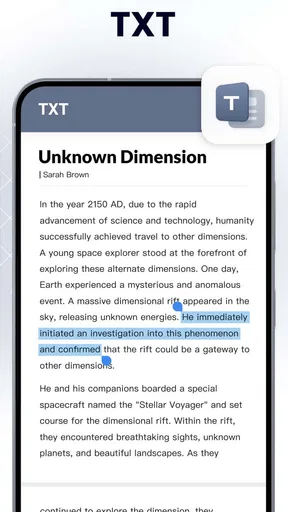
TXT files are a particularly practical case. Plain text avoids many of the visual complications found in office layouts, so the app can serve well for notes, copied instructions, or simple reference material. Conversely, a presentation that depends on tiny labels, color distinctions, or tightly arranged diagrams may remain difficult even when the file opens correctly.
The app is rated for Everyone, which fits its general-purpose role. It is also available on devices running Android 6.0 or later, so it can suit people using older compatible phones rather than requiring a recent handset. That wider device range is helpful in households where not everyone upgrades at the same time.
Reading without relying on perfect vision
I would still treat the phone’s own display settings as part of the reading setup. Increasing system text size, using a brighter screen, or choosing a stronger contrast setting can make a bigger difference than changing apps. Those adjustments are especially useful when opening a document outdoors, in a dim room, or after a long day when small text becomes tiring.
There is also a difference between enlarging text and enlarging a whole page. A PDF often preserves its page layout, so the reader may need to pan across the page rather than seeing larger text reflow into a narrow column. That is manageable for a short form, but it can become tiring in a long report. I would use short reading sessions and keep the phone steady rather than trying to read a dense page while walking.
For users who depend on spoken content, I would test the app with the accessibility tools already available on the phone before relying on it for important material. Document Reader - PDF Editor is clearly centered on viewing documents, but the accessibility of an individual file can depend on how that file was created. A clean text document is a different case from a scanned PDF that contains page images instead of selectable text.
Motor effort and touch control
Touch interaction is convenient when I only need to open a file, scroll, or move around a page. It becomes more demanding when a document requires repeated pinching, dragging, or precise tapping. People with limited dexterity may find a short inspection comfortable but a long session tiring, particularly when a wide spreadsheet forces frequent horizontal movement.
This is where the app’s broad format support has a trade-off. Having PDF, DOCX, XLSX, PPT, and TXT in one place is convenient, but each format brings its own navigation pattern. A document with a simple vertical flow needs fewer gestures than a presentation or spreadsheet with content spread across a larger visual area.
I recommend opening important files before leaving home and checking that the pages can be reached without awkward gestures. That small preparation step can prevent a difficult situation later, such as trying to find a reference number during a phone call while also holding a bag or using public transport.
Voice control or an external input method may help some users, but the quality of that experience depends on the phone and operating system as well as the app. I would not promise a completely hands-free workflow. For a person who needs extensive keyboard navigation, a desktop office program with established keyboard support may be a better choice.
Color, sound, and sensory context
Documents are not equally understandable for every sensory profile. A spreadsheet may use color to distinguish warnings, totals, or categories, while a presentation may communicate through images and visual hierarchy. If the meaning depends on color alone, the app cannot fully solve the problem; the document itself needs clearer labels or text alternatives.
In my testing mindset, I would judge a file and the viewer together. A well-structured document with clear headings remains easier to follow than a crowded page, regardless of which reader opens it. This makes Document Reader - PDF Editor useful for checking content, but not a substitute for accessible document design.
For people sensitive to visual clutter, the benefit of a single-purpose reader is that it avoids the many panels found in a full editing suite. On the other hand, anyone who needs strong control over page appearance, color treatment, or presentation playback may prefer a dedicated format-specific app. The simpler route is not always the more capable route.
Using it when attention and time are limited
A realistic example is receiving a DOCX itinerary in a messaging conversation just before travelling. I would open it in the app, confirm the address and schedule, and perhaps check a related PDF without switching between several office tools. That is a good use case because the goal is quick access, not detailed revision.
Another is a family member sending an XLSX household document and asking me to confirm one figure. I can use the viewer to locate the relevant area, but I would be cautious about interpreting a wide sheet on a small screen. If the answer depends on formulas, hidden columns, or a particular formatting convention, I would verify it later on a larger display.
Situational access is one of the app’s real strengths. A phone is available in places where a laptop is not: waiting rooms, classrooms, shops, buses, and home spaces where carrying a computer is inconvenient. The app’s free entry point also makes it easier to try without committing money first, although in-app purchases range from around thirteen dollars to around forty dollars per item. I would check the purchase screen carefully before selecting anything beyond the basic use I need.
What the large user base tells me—and what it does not
The app has a 4.7 average from around 885 thousand ratings and more than 50 million installs, which suggests that its basic document-viewing purpose resonates with a broad Android audience. It has also accumulated around 6.3 thousand written reviews. I see those figures as evidence of familiarity and reach, not as proof that it will suit every reading or accessibility need.
Its current version is 1.3.1, and the app was released on December 19, 2021. Those details are useful when considering device compatibility and expectations, but they do not replace a personal test with the files that matter most to you. A viewer can feel excellent with simple PDFs and much less comfortable with a complex workbook.
Remaining barriers before choosing it
The biggest barrier is the gap between viewing and editing. The name includes “PDF Editor,” but I would not assume that opening a document means having the same editing power as a dedicated office suite. If your work involves revising long documents, managing spreadsheet formulas, or rebuilding presentations, a specialized tool on a computer is likely to be more efficient.
Another limitation is the phone itself. Even when the app opens a file successfully, a small screen can make comparison, selection, and visual checking difficult. Users with low vision may need frequent zooming; users with motor limitations may face repeated gestures; users with attention difficulties may lose their place in a wide or poorly structured document.
I would also be careful with important forms and records. Before depending on the app for a deadline, I would open the exact file, move through every relevant page, and check whether text is selectable and readable. If the document is scanned, uses unusual fonts, or contains complicated tables, I would keep an alternative viewing method available.
Compared with separate PDF, word-processing, spreadsheet, and presentation apps, this one offers convenience through consolidation. Compared with a full office suite, it is better suited to quick access than sustained creation. Compared with a browser-based workflow, it may feel more direct for files already stored on the phone, while a browser or cloud office service can be preferable when collaboration and synchronized editing are the priority.
My inclusive verdict
I recommend Document Reader - PDF Editor to people who need a practical way to inspect several common document formats on an Android phone. It is especially useful for quick reference, travel documents, work attachments, school files, and plain-text notes. Its free price, Everyone rating, support for Android 6.0 and later, and broad familiarity make it an approachable option for many users.
For accessibility, I see it as a helpful foundation rather than a complete solution. It can reduce app switching and make documents available in more situations, but comfort still depends on screen size, file structure, system settings, and the reader’s motor and sensory needs. I would recommend adjusting the phone first, testing real files, and keeping a larger-screen alternative for dense work.
My final judgment is that the app succeeds when the question is, “Can I open and check this document right now?” It is less suitable when the question is, “Can I comfortably create, edit, compare, and manage a complex office project for hours?” If your needs are mainly about reliable mobile access, Document Reader - PDF Editor is worth trying. If you need advanced editing or carefully controlled accessibility behavior, I would choose a dedicated office tool instead and use this app as a convenient reader alongside it.
Verdict
Strengths of Document Reader - PDF Editor
- Opens PDFs quickly, even when switching between several stored documents.
- Supports text search, making lengthy files easier to navigate.
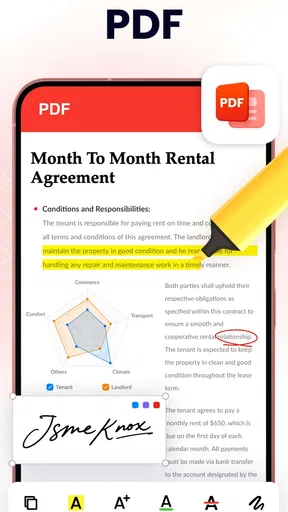
- Offers useful annotation tools for highlighting and adding notes.
- Files can be organized for faster access to frequently used documents.
- Provides a convenient way to read documents while traveling or offline.
Limitations of Document Reader - PDF Editor
- Some advanced editing features may require a premium subscription.
- Large or image-heavy PDFs can take longer to load on older devices.
- The interface may feel crowded when many editing tools are displayed.
- Annotation controls are less precise on small phone screens.
- Certain document formats may not be supported as reliably as PDF files.
Other Releases by Simple Design Ltd.
View All
Video Downloader - Downloader
Video Players & Editors4.7

Fonts Keyboard Themes & Emoji
Personalization4.7

Image to PDF - PDF Maker
Productivity4.9

PDF Reader - PDF Editor
Productivity4.6
Similar Picks in This Category
View All
Google Calendar
Google LLC4.6

Google Drive
Google LLC4.3

Google Assistant
Google LLC3.9

Microsoft OneDrive
Microsoft Corporation4.6

Samsung Calendar
Samsung Electronics Co., Ltd.4.1

Microsoft OneNote: Save Notes
Microsoft Corporation4.6
Frequently Asked Questions
What is Document Reader - PDF Editor used for?
Document Reader - PDF Editor is designed for opening, viewing, organizing, and managing PDF files on a mobile device. During testing, it was useful for reading documents, searching for specific words, zooming in on small text, and moving between pages quickly. Depending on the version, it may also include tools for annotating, filling out, signing, editing, or converting documents.
Can Document Reader - PDF Editor edit existing PDF files?
The app may provide more than basic PDF viewing, but its editing capabilities can vary by version and subscription plan. Typical tools may include adding text, highlighting content, drawing, inserting signatures, or making comments. More advanced functions, such as changing existing text, rearranging pages, merging files, or converting documents, may require premium access, so users should check the feature list before downloading.
Does the app support other document formats besides PDF?
Document Reader - PDF Editor may support several common office and image formats in addition to PDF, depending on the device and app version. Users may be able to open files such as Word documents, spreadsheets, presentations, or images from local storage and cloud services. Compatibility is not always identical across platforms, so checking the supported-format list is recommended before relying on it for work or study.
Can I use Document Reader - PDF Editor without an internet connection?
Many basic functions, including opening PDF files already stored on the device, reading pages, searching text, and adding simple annotations, can generally be used offline. However, internet access may be needed for downloading files, synchronizing cloud storage, using online conversion or recognition tools, displaying advertisements, or validating a subscription. Offline availability can also depend on the file location and the specific tools being used.
Is Document Reader - PDF Editor free to download and use?
The application can usually be downloaded without an upfront charge, but free access may be limited by advertisements, feature restrictions, watermarks, file-size limits, or the number of documents that can be processed. Advanced editing, conversion, cloud integration, or ad-free use may require an in-app purchase or subscription. Before starting a trial, review the billing terms and cancellation policy carefully.
